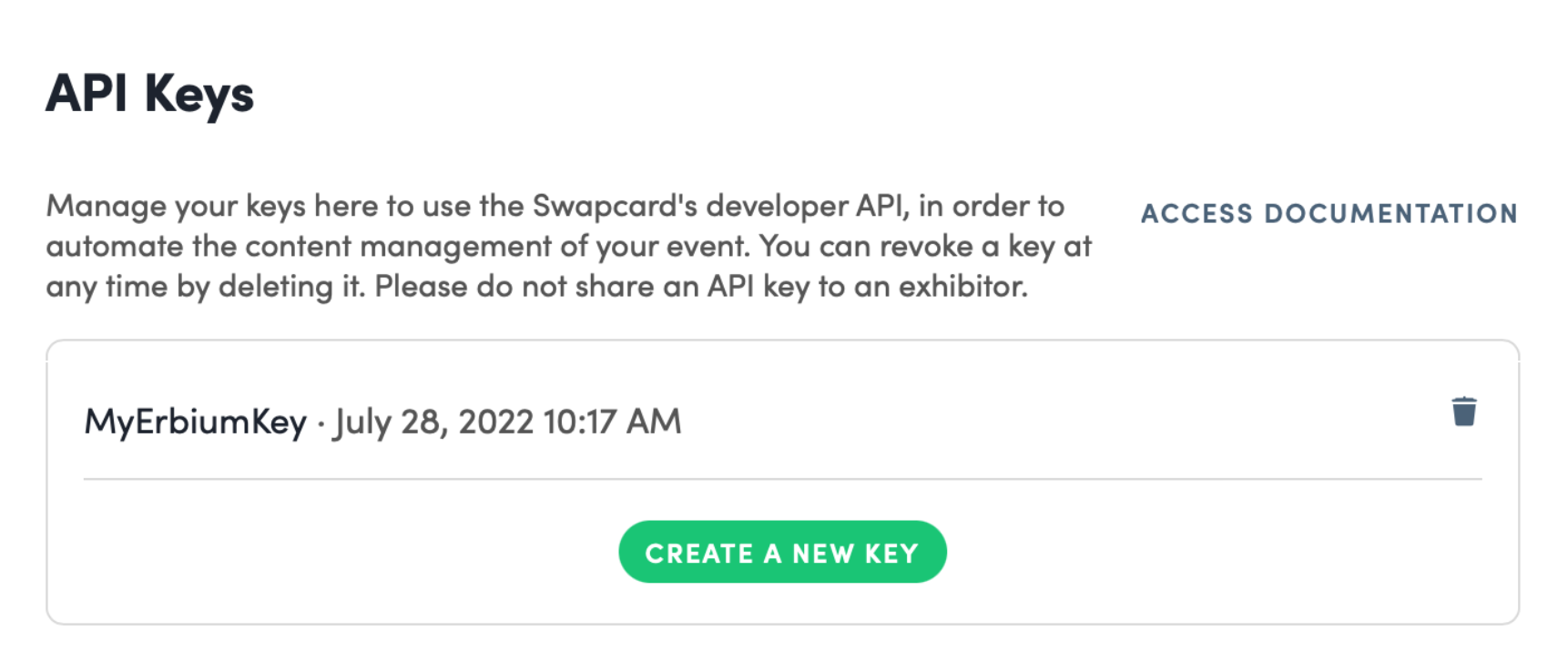
In order to connect your event in Erbium to Swapcard you will need an API key.
Think of the API key as the unique identifier that lets SwapCard recognize Erbium as a legitimate application with permission to connect to your SwapCard events.
Should I create one API key or multiple API keys?
You can create a single API key for all Erbium events or individual API keys for each event.
Single API key?
The advantage to creating a single API key is that the process described here needs only be completed once and the generated key is used for all events.
The disadvantage is that if you cancel or delete the single API key ALL your connected events in Erbium will be unable to connect to SwapCard.
Individual API Keys?
The advantage to creating an API key for each event is that if you cancel or delete one individual key only the event associated with that key will be affected.
The disadvantage is that you will need to follow this process and create a separate key for each Erbium event.
Steps to create an API key in SwapCard:
- Sign in to your SwapCard Studio
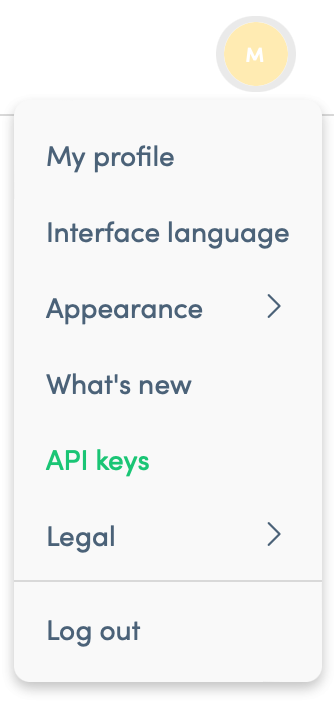
- Navigate to the user menu and click on "API Keys" shown in green below.
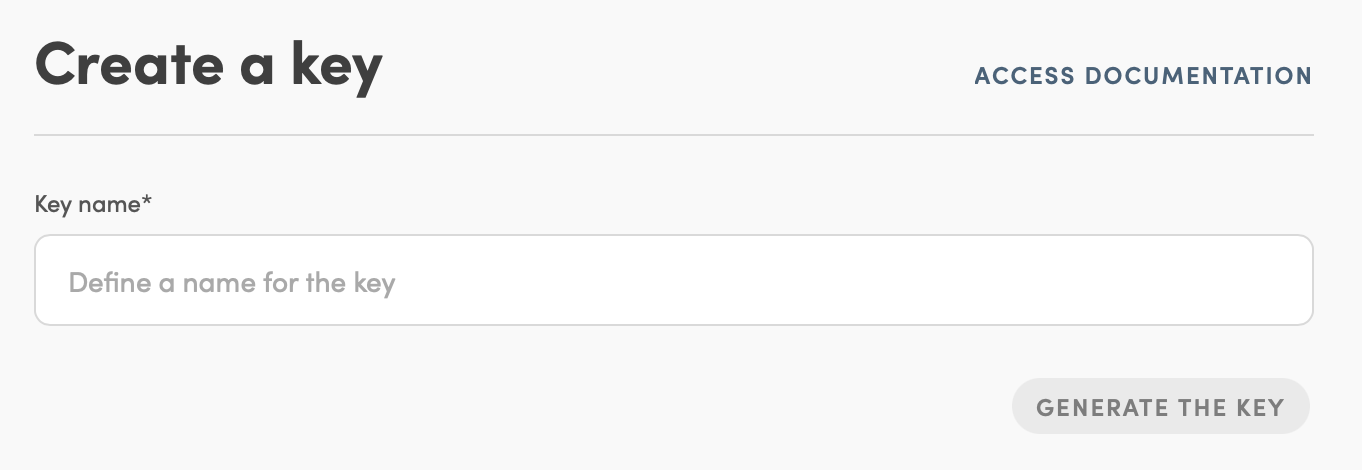
- Click "Create a New Key"
- Define a name for the API key. This will help you identify the key later
In this example we will create a key called "My Erbium Key"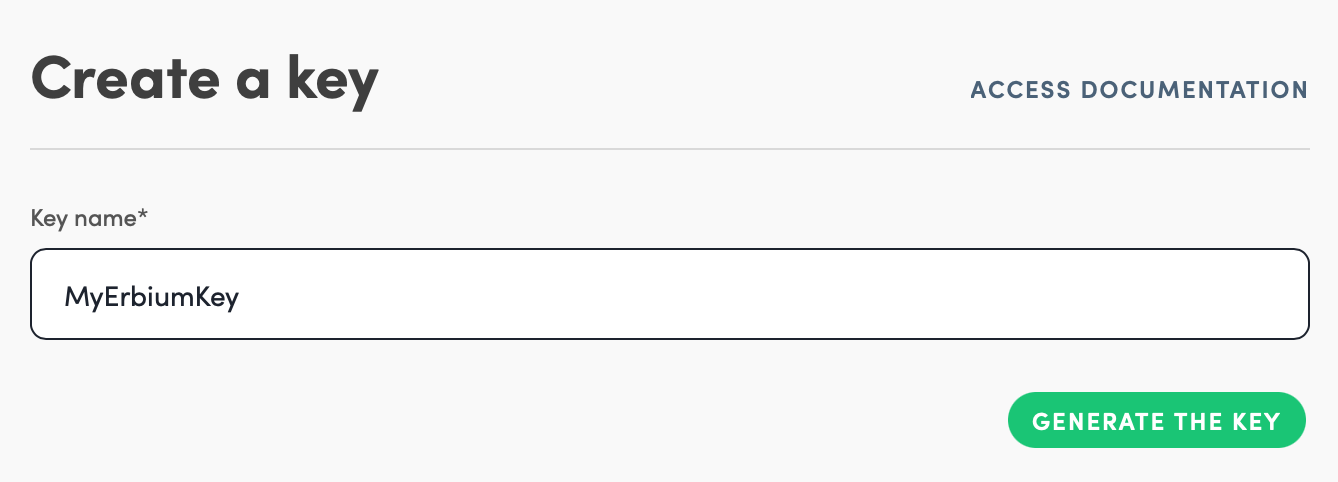
- Click "Generate The Key" and SwapCard will generate a unique key comprising many alpha-numeric characters.
- Click "COPY" to copy the API key and paste it to a secure location for future reference.
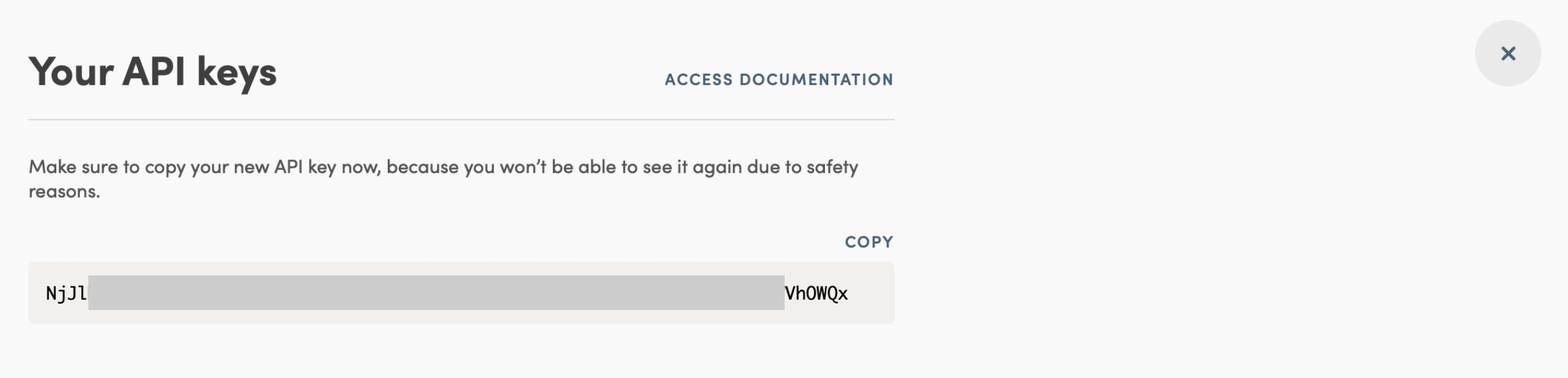
IMPORTANT: You MUST copy the API key and retain to later paste into the Erbium platform when connecting your event. You will NOT be able to access the key once the API page is closed. - Once the API key is securely stored close the dialog by clicking the 'X'
- Your API key or keys will be displayed: