
What is a Heading Widget?
A heading widget is similar to a heading in Microsoft Word or HTML 'H' tag. It is used to place one of six sizes of headings.
In the left menu, the Heading Widget can be identified by this graphic:

To place a Heading Widget on a form drag the icon onto the form using your mouse (or finger if using a mobile device). The editing panel will open on the left, ready to provide the title of the Heading:
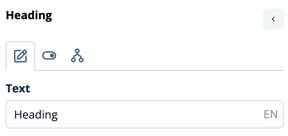
As an example, once the Heading Widget has been placed on a form and titkled "Contact Information" it appears as below in the form editor - including formatting controls:
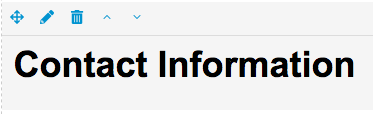
On a live form, website or email template the formatting controls are hidden and the Heading Widget appears as below:

Configuration settings for Heading widgets
Level
The 'level' of the heading changes the size of the heading, Heading 1 being the largest heading and Heading 6 being the smallest
Align
Align enables you to position the Heading to the left, the right or the center of the content panel